
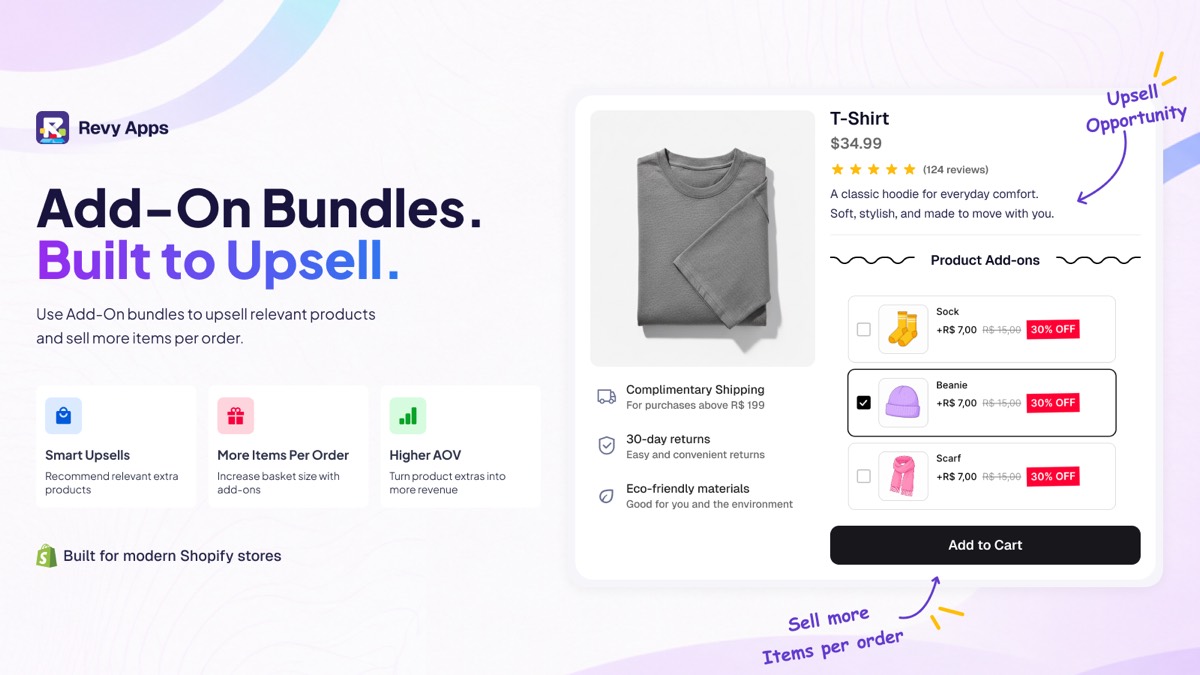
Shopify product add-ons are extra products a shopper can add from the page of the item they’re already buying, like socks with a T-shirt or a case with a phone. Shopify has no built-in add-on checkbox with its own discount. You can get part of the way without an app, using variants, line item properties and Shopify’s free Search & Discovery app. A bundle app with add-ons, like our Unlimited Bundles & Discounts, covers the rest with a checkbox list above the add to cart button and a real discount shown on the page and at checkout. The add-ons go into the cart together with the main product.
We build that app, and add-ons are one of its bundle types, so we have a stake in this. Everything below about Shopify’s own tools comes from Shopify’s own documentation and changelog, checked in November 2026.
What counts as a product add-on on Shopify?
Two different things go by this name.
Add-on products are real products from your catalog. The socks have their own price and stock, and they show up in the order as a line of their own. This article is mostly about these.
Product options are details about the item itself, such as engraving text or a gift message. They aren’t products. Shopify stores them as line item properties on the order line, and on their own they don’t change the price.
Can you add product add-ons on Shopify without an app?
Yes, in three ways. Each one covers part of the job.
1. Make the add-on a variant
Add an option such as “Case: none / with case” to the main product and give the second variant a higher price. It works on every plan without installing anything. Any saving is simulated, though. The variant simply costs less than the two items bought apart, so nothing shows as a discount in the cart or at checkout. Since October 2025 Shopify allows 2,048 variants per product, but a product still has at most 3 options, so a T-shirt that already uses size and color has one option left. The bigger problem is that the case isn’t a product here. Its stock isn’t tracked on its own, and you repeat the setup on every product that should offer it.
2. Show complementary products with Search & Discovery
Shopify’s free Search & Discovery app lets you pick up to 10 complementary products for each product, which is Shopify’s own version of a “frequently bought together” section. If your theme has a complementary products block, they appear on the product page, and with quick add turned on the shopper adds one to the cart without leaving the page. Only active, in-stock products show, and an item already in the cart is hidden. Search & Discovery has no discount of its own, so the add-on sells at full price, unless you set up a separate Buy X Get Y discount that shoppers only see once they reach the cart.
3. Use line item properties for options
For engraving or a gift note, a small edit to your theme’s product form adds a text field, and whatever the shopper types is saved on the order line. It collects text or files only. To charge for the engraving, stores usually create a separate fee product, which brings you back to the first two methods.
A developer can also build a checkbox list in your theme that adds the add-on through Shopify’s cart API. It works, but someone has to keep it working every time the theme changes.
Shopify product add-ons compared
| Variant | Search & Discovery | Add-on app | |
|---|---|---|---|
| Add-on keeps its own stock | No | Yes | Yes |
| Goes into the cart with the main product | Yes | No | Yes, automatically |
| Discount when bought together | Simulated | No, not on its own | Yes |
| Discount shown on the product page | Simulated | No | Yes |
| Discount shown at checkout | No | No | Yes |
| Several add-ons at once | No | No, one at a time | Yes |
| Follows the main product’s quantity | Yes | No | Yes, per add-on |
| Add-on can be required | Yes | No | Yes, per add-on |
| What you set up | Product options | A theme block | An app block |
When is a product add-ons app worth it?
If you sell a handful of products with one obvious extra each, add-ons without an app are fine. Show them as complementary products on the product page and sell them at full price.
An app starts to earn its place when shoppers should see the discounted price before they add to cart, or when one offer has to cover a whole collection. The same goes for add-ons that are required, or that should match the main product’s quantity, so two shirts bring two pairs of socks.
How add-on bundles work in Unlimited Bundles & Discounts
In Unlimited Bundles & Discounts, Shopify product add-ons are a bundle type of their own. You create an add-on bundle and choose where it shows: on every product, on the products you pick, or on the products of the collections you pick. Then you choose the add-on products and, if you want, a discount on them.
Each add-on has three settings, all off until you turn them on: ticked by default, required, or following the main product’s quantity. On the product page the shopper sees the add-ons as a checkbox list above the add to cart button and ticks the ones they want.
Are add-ons added to the cart automatically?
Yes. When the shopper adds the main product to the cart, the add-ons go in with it, with no second click and no separate add to cart for each extra. That includes the ones the shopper ticked and any you set as ticked by default or required.
The discount runs on Shopify Functions, Shopify’s own discount system, so it’s a real discount. Shoppers see it in the cart and at checkout, and it applies in Shopify POS too. In the app’s settings you choose which other discounts it can combine with, and product, order and shipping discounts are all allowed until you change it. Every text shoppers see can be translated for stores in several languages.
Product page, add to cart or checkout?
Add-ons on the product page reach the shopper while they’re still deciding, which is why the methods above all live there.
You can also make the offer at the moment of add to cart. Our other app, Unlimited Smart UpSell Offers, shows upsell and cross-sell offers in a popup when a product goes into the cart.
Checkout is the most limited spot. Shopify’s developer docs say apps can add blocks to the information, shipping and payment steps only on Shopify Plus. On other plans, the product page and the moment of add to cart are where an add-on offer fits.
Questions merchants ask about add-ons
Do add-on products keep their own inventory?
Yes, with every method except variants. The add-on is a real product, so stock comes off it like any other sale.
Can an add-on be free?
Yes. A free add-on is usually called a gift with purchase, and we cover gift bundles in Shopify Bundles app: its limits and when to use a bundle app.
Do add-on discounts combine with discount codes?
It depends on both discounts. Shopify only combines discounts that allow each other, as its help page on combining discounts explains. In our app, the combination setting mentioned above decides which ones can stack with your add-on discount.
If you’re not sure which route fits your store, ask us in live chat. The people who build the app answer it, and if the free route is enough for what you sell, we’ll tell you.